


Please note only serial numbers generated for versions 8 and upwards with an active SMP are eligible for online renewal. If you have an older license or if your SMP has already expired, please contact store@digitalsurf.com.
Access
Access to the Digital Surf online store is available via the following link: store.digitalsurf.com
User account creation
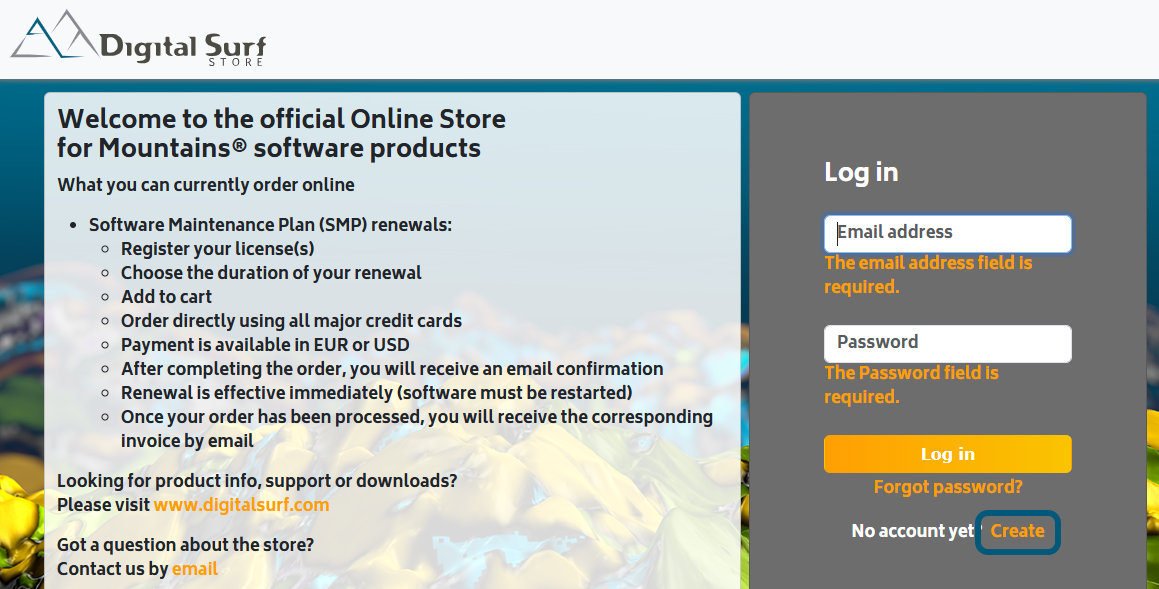
If this is your first time logging in and you don’t have a user account yet, click on “Create” on the homepage.
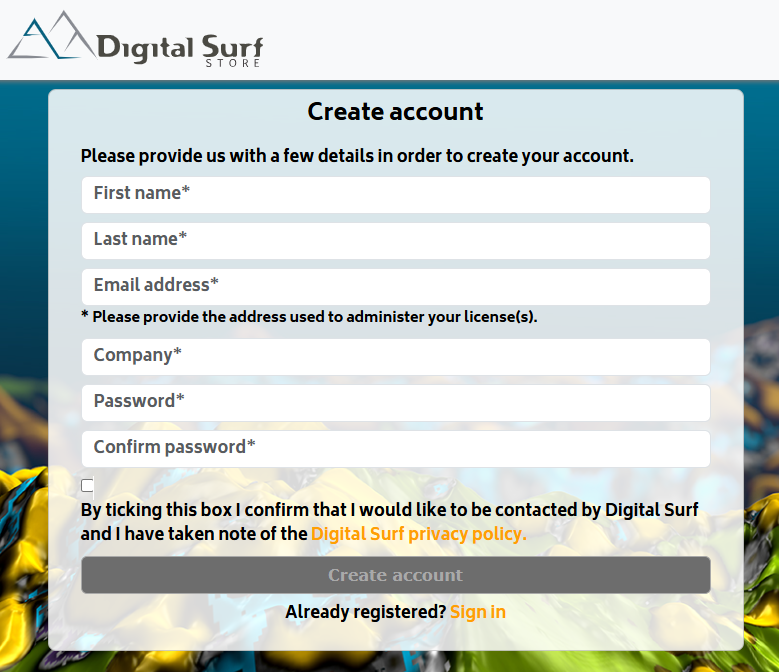
Fill in the “Create account” form.
Please note that password must have at least 8 characters, with at least one non-alphanumeric character and one digit.
Confirm by clicking on “Create account”.
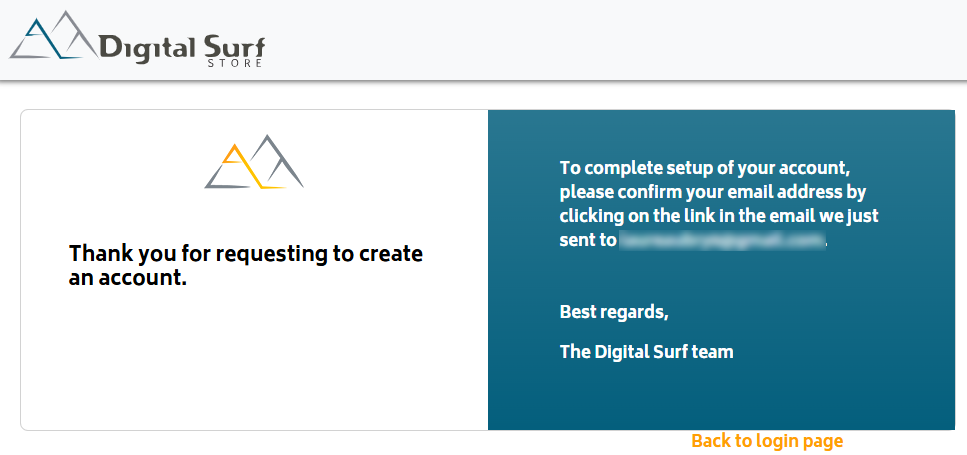
To complete setup of your account, please confirm your email address by clicking on the link in the confirmation email you receive (Sender: Digital Surf Online Store; Subject: Confirm your account).
Once you have confirmed your email address by clicking on the link, you are automatically logged in to your user account.
Log in to user account
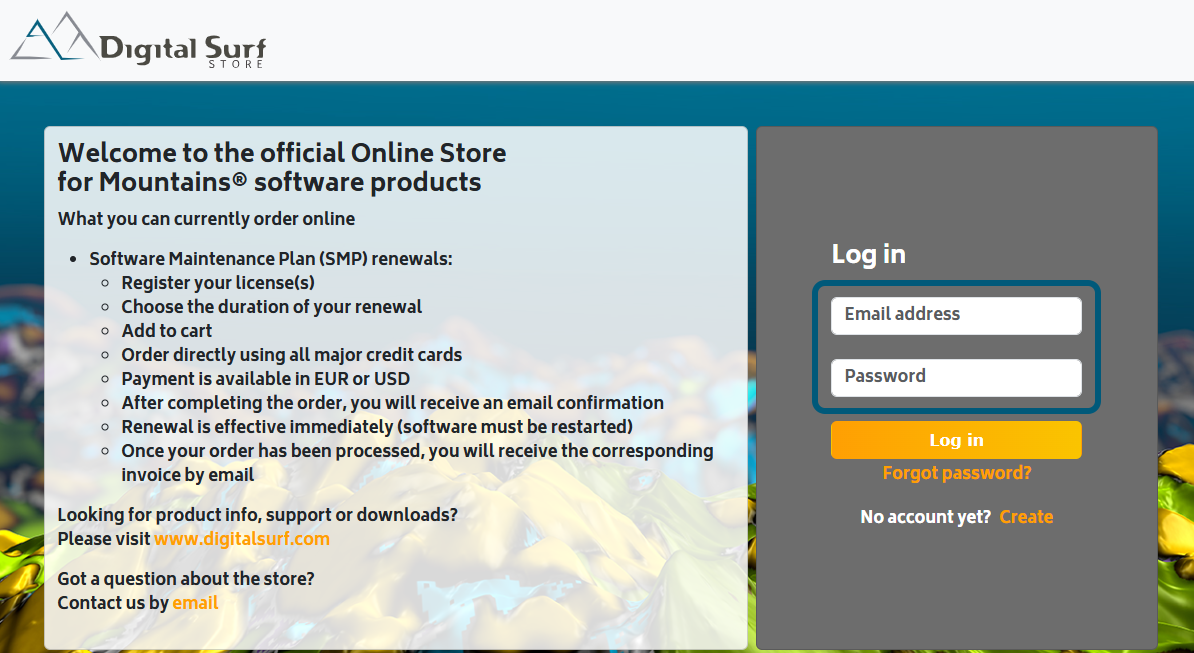
If you already created a user account, simply log in with your email address and password to access your account.
User account homepage
When you log in to your user account, you access the following page. On this page, you can add a new license or manage your previously registered licenses (if available).
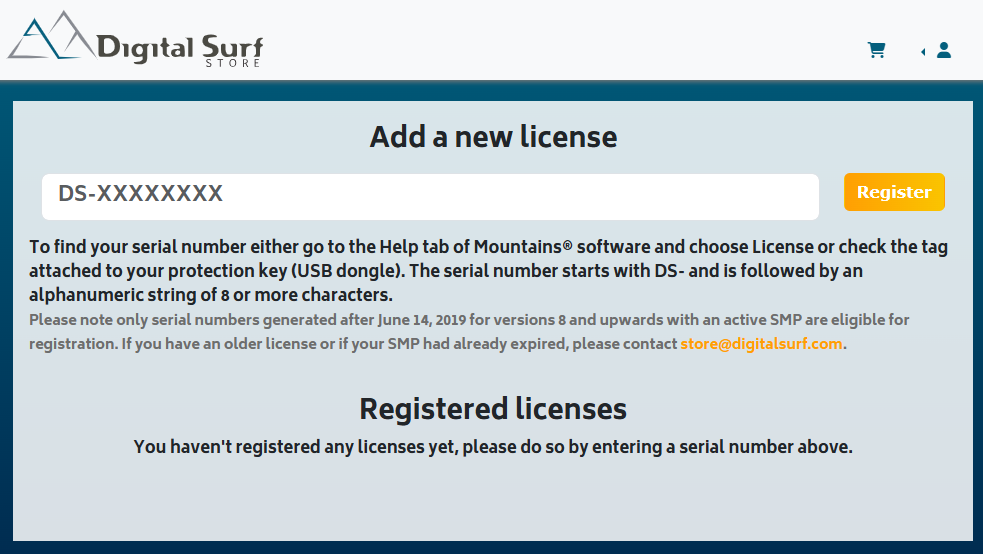
Add a new license
Enter the serial number of your license in the field provided and click on “Register”.
To find your serial number either go to the Help tab of Mountains® software and choose “License” or check the tag attached to your protection key (USB dongle). The serial number starts with DS- and is followed by an alphanumeric string of 8 or more characters.
Please note only serial numbers generated after June 14, 2019 for versions 8 and upwards with an active SMP are eligible for registration. If you have an older license or if your SMP has already expired, please contact store@digitalsurf.com.
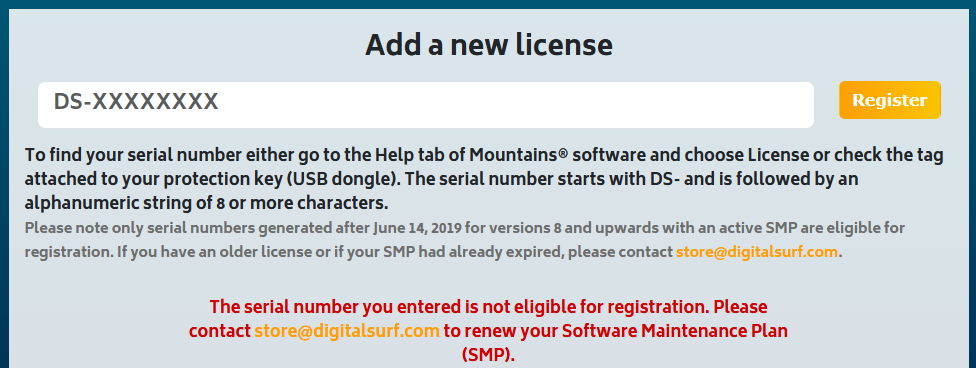
After clicking on “Register”, a confirmation message appears. Our team will review your request and keep you informed by email.
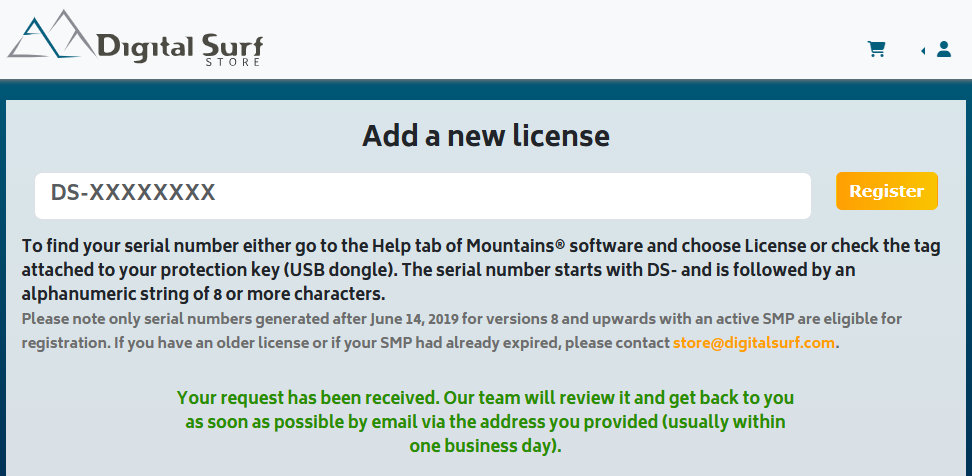
If a red message appears, it means that your serial number is not correct or not eligible for online renewal. Please contact store@digitalsurf.com.
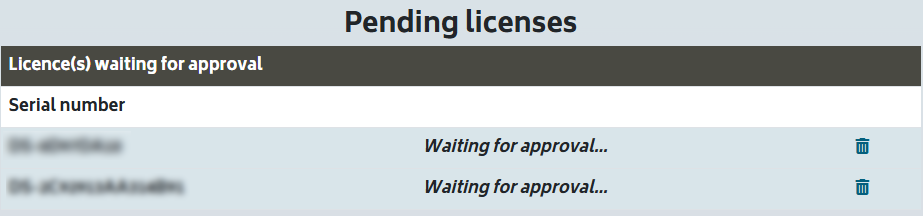
When your request is waiting for approval, the license appears under “Pending licenses”.
When your request has been validated by our team, you receive a confirmation by email and the details of the license can now be found under “Registered licenses”.
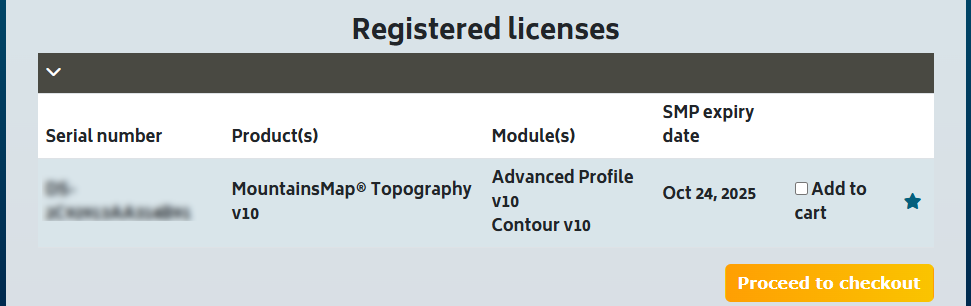
Note: in the “Registered licenses” section, you can manage the serial number you previously entered, but also all the serial numbers registered for your company/institution.
Select the license(s) for which you wish to extend the Software Maintenance Plan date by ticking the “Add to cart” box, then click on “Proceed to checkout”.
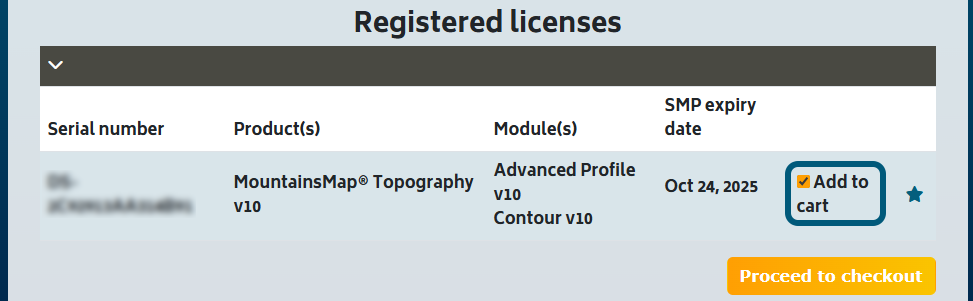
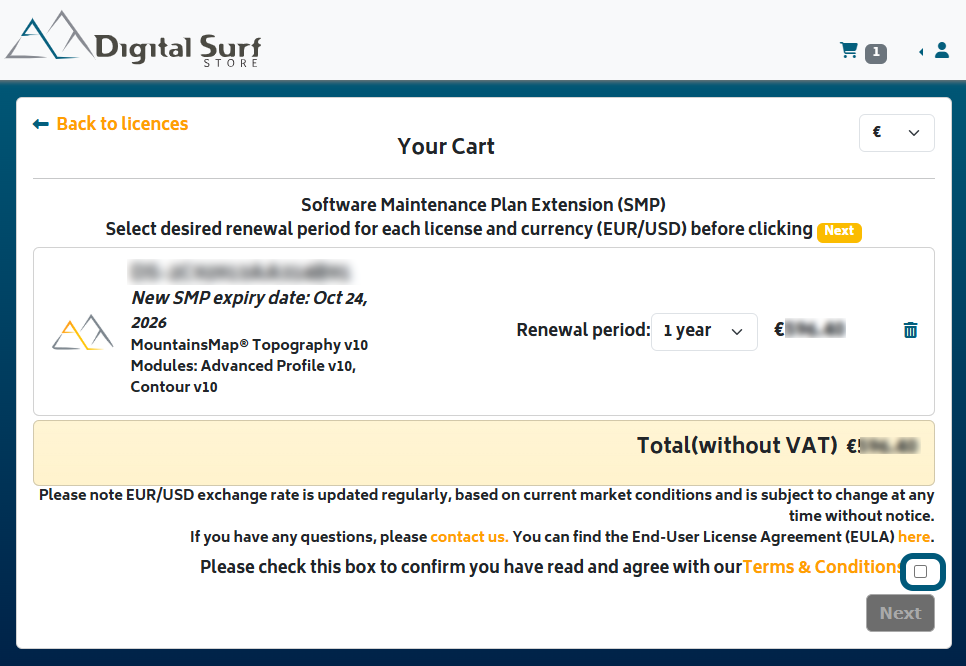
A cart with details of your licenses appears on the next page. On this page, you can choose:
- The currency (EUR or USD), in the top right corner

- The renewal period from 1 to 5 year(s)
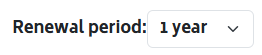
Price and new expiry date are updated accordingly.
When period and currency have been selected, check the “Terms & Conditions” box and then click on Next.
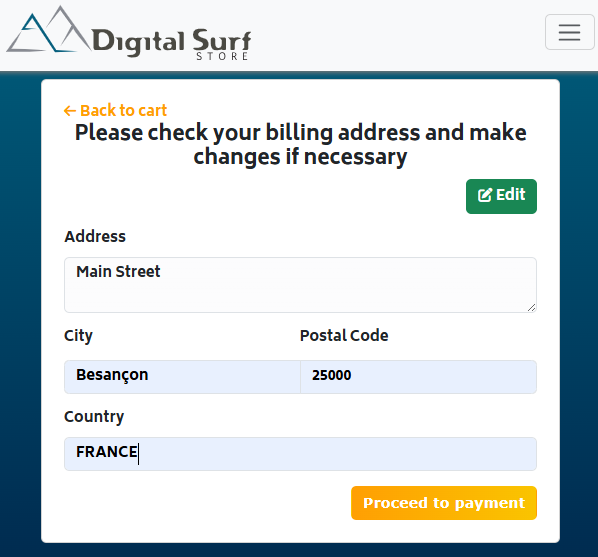
In the following page you have to check the billing address, and make changes if necessary by clicking on “Edit”. If everything is correct, click on “Proceed to payment”.
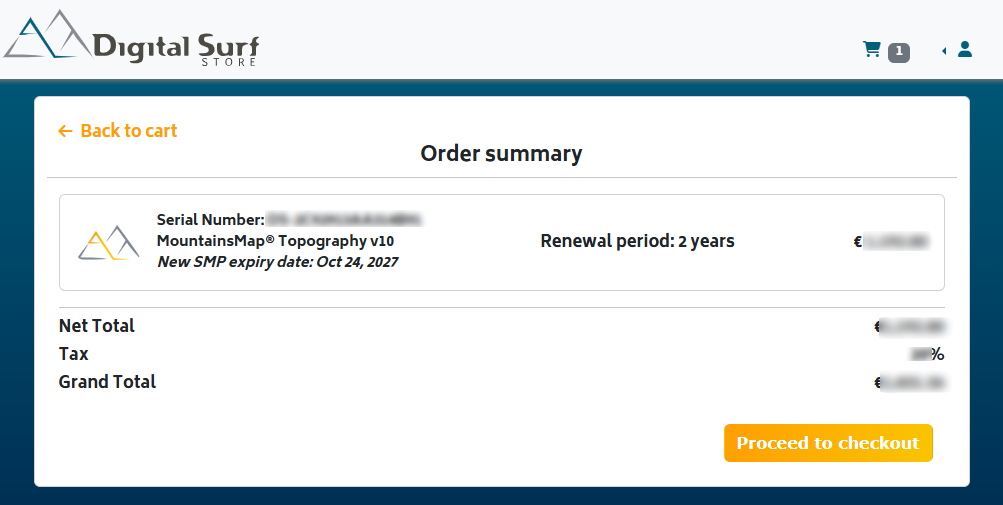
An order summary is displayed in the next page. Please check everything is correct before clicking on “Proceed to checkout”.
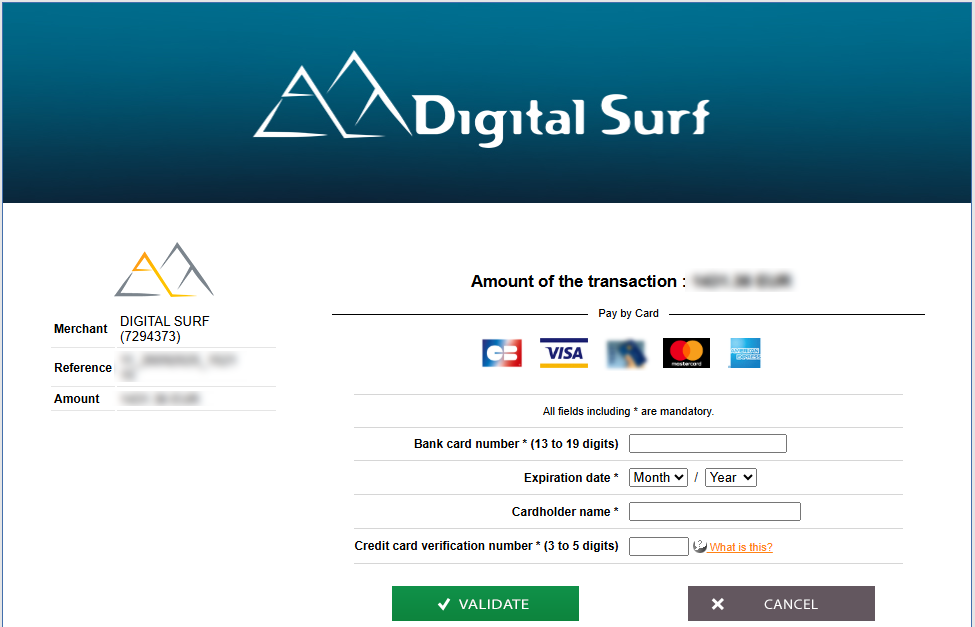
Follow the instructions on the payment page to finalize your order.
A confirmation page appears then, confirming your license has been updated. A confirmation is also sent by email.
Changes in Mountains® will be applied next time you restart the software.
Your invoice will be sent by email by the end of the month.
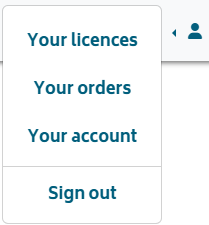
A summary of your previous orders can be found under “Your orders” in the user menu.
Should you have any question, please feel free to contact us at store@digitalsurf.com.